How to Convert a Scanned Bank Statement to Excel
To convert a scanned bank statement to Excel, upload the PDF to Bank Statement Converter (BSC) on the Pro plan. OCR reads the transactions into a table, BSC checks every row against the running balance, and you download an editable Excel file. Before you pay for OCR, check online banking for a digital copy of the statement, which converts for free.
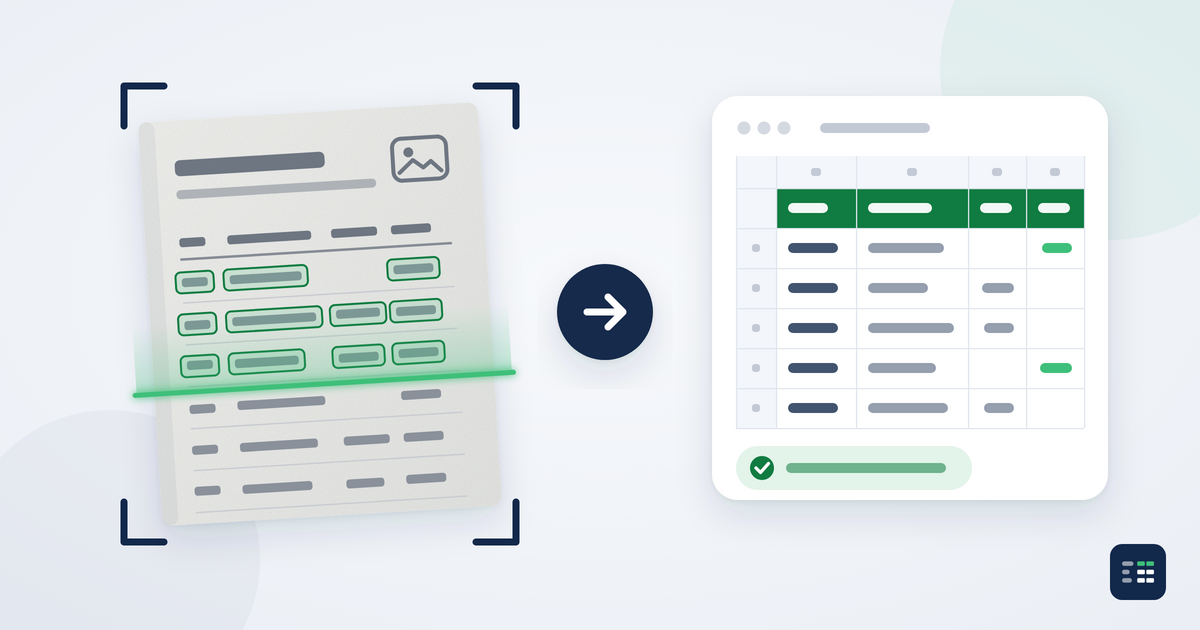
A client drops off a folder of paper statements for their tax return. Or the only copy of last year's statements is a stack of scans from a home printer.
The numbers are right there on the page, but Microsoft Excel can't use them, because a scan is a picture of numbers and has no text to copy.
So any tool that turns a scan into a spreadsheet has to read the picture first, with OCR (Optical Character Recognition). OCR can misread a digit, and a wrong amount looks just as believable as the right one. That's why the check after OCR matters as much as the OCR itself.
Here's how to get those rows into Excel without retyping them:
- Check if your statement is scanned
- Get a digital copy from your bank first
- Convert the scan to Excel with BSC
- Catch the amounts OCR got wrong
- Scan paper statements for better results
In this guide, we show you each step, including what a misread amount looks like and how the balance check finds it.
How do you know if a bank statement is scanned?
Try to select a single word in the PDF with your cursor. If you can, the PDF has a text layer. If the whole page highlights as one block, or nothing highlights at all, it's a scan.
Text-based PDFs, the kind you download from online banking, don't need OCR. They convert on BSC's free plans.
Note: Watch for mixed files. A PDF can have text on some pages and scans on others, for example when someone printed one page, signed it and scanned it back in. Run the test on every page. If any page fails it, treat the whole file as a scan.
Can your bank give you a digital copy?
Always check online banking before you scan anything. Most banks let you download past statements as PDFs, and those have a text layer, so they skip OCR and convert on the free plan.
How far back the downloads go depends on your bank. If the month you need is older, ask the bank for a copy. If it can only send paper, or a client has nothing but scans, OCR is the way in.
How to convert a scanned bank statement to Excel with BSC
Follow the steps below to convert a scanned bank statement to Excel using Bank Statement Converter (BSC):
- Subscribe to Pro. OCR for scanned statements is part of the Pro plan, at $10 a month billed yearly ($120) or $20 month to month.
- Upload your scan. Drop the scanned PDF into the bank statement converter.
- Check the balance and preview. Look over the table before you convert. On a scan, compare a few amounts with the page, especially on pages that are faint or crooked.
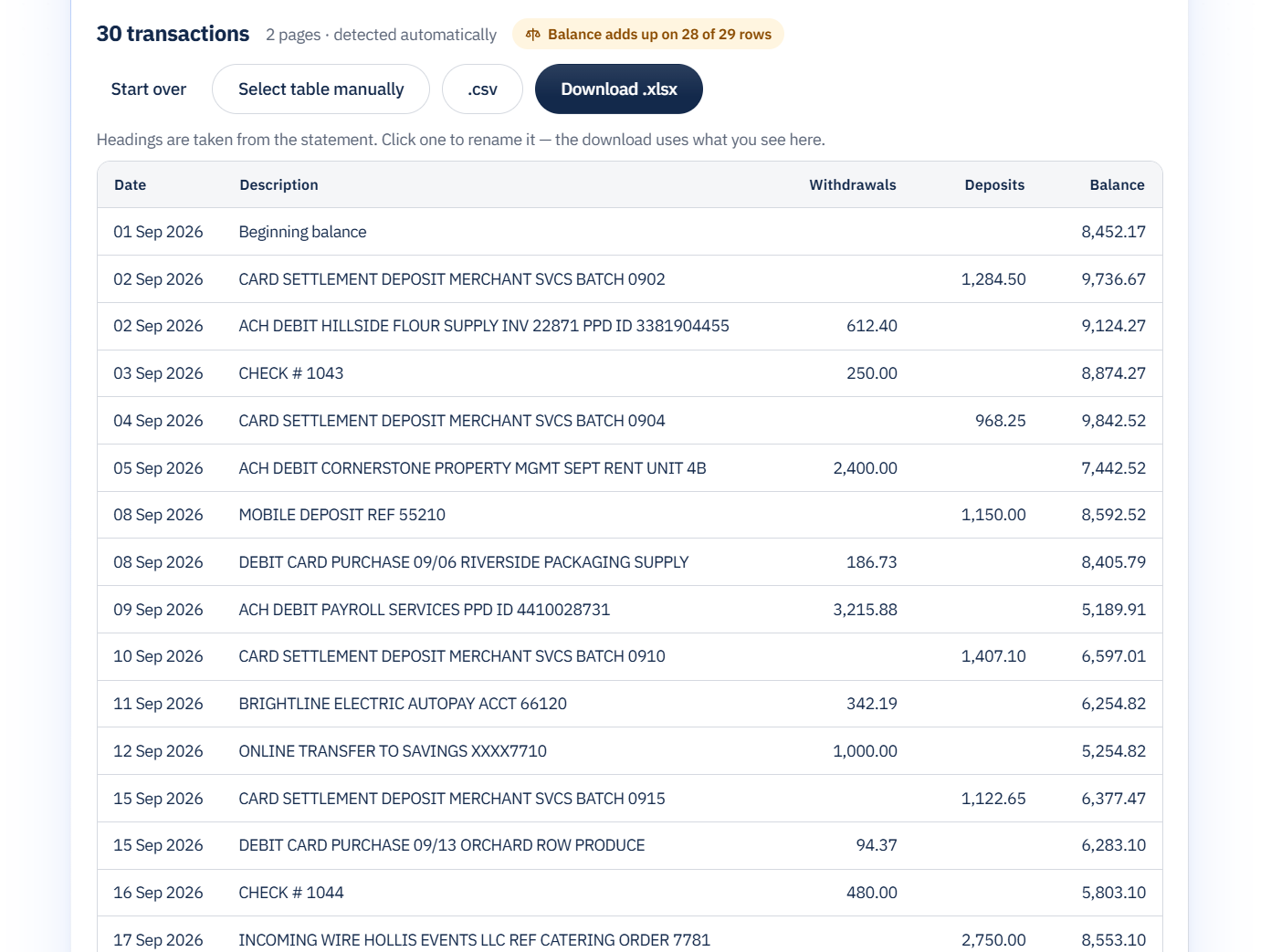
- Convert. BSC reads the scan with OCR, puts the transactions into columns, checks every row against the running balance and shows how many rows add up. How well OCR reads a page depends on the quality of the scan.
- (Optional) Fix the table in manual mode. Draw a box around the table, add or remove rows and columns, move the column dividers and set each column's type: date, text or amount. The balance check runs again on your manual table.
- Download. Your table downloads as an Excel file (.xlsx), ready for Excel or Google Sheets.
Have a stack of client scans? Pro also includes batch conversion: drop several PDFs at once and download the results as one ZIP file. See available plans.
How do you catch amounts OCR got wrong?
OCR reads each digit from the picture, and a blurred or faint digit can come out as a different one. The result still looks like a normal amount, so you can't spot it by reading the sheet. Three mistakes show up most on scanned statements:
- Misread digits. An 8 read as a 3, a 5 as a 6, or a 1 as a 7. The row looks fine, and the amount is wrong.
- Dropped minus signs. Some statements print withdrawals with a minus sign, or with DR after the amount. If OCR misses that small mark, a payment turns into a deposit.
- Merged or split rows. A description that wraps onto a second line, or two rows printed close together, can come out as one row, or as an extra row with no date or amount.
How the balance check finds a misread
Most statements print a running balance. BSC takes each row's deposit or withdrawal, applies it to the printed balance on the row above and compares the result with the balance printed on that row. A misread amount makes its own row fail, and the rows around it still add up.
Say OCR reads the 09/18 payment of $588.92 to Hillside Flour Supply as $583.92:
|
Date |
Description |
Amount OCR read |
Printed balance |
Balance check |
|---|---|---|---|---|
|
09/17 |
INCOMING WIRE HOLLIS EVENTS LLC |
$2,750.00 deposit |
$8,553.10 |
Adds up |
|
09/18 |
ACH DEBIT HILLSIDE FLOUR SUPPLY |
$583.92 withdrawal (statement shows $588.92) |
$7,964.18 |
$5.00 off |
|
09/19 |
MONTHLY SERVICE FEE |
$15.00 withdrawal |
$7,949.18 |
Adds up |
$8,553.10 minus $583.92 is $7,969.18, but the statement prints $7,964.18, so the 09/18 row is $5.00 off. The rows before and after it add up, which points you straight to the misread.
A totals check (opening balance, plus deposits, minus withdrawals, compared with the closing balance) would also come out $5.00 off. It just can't tell you which of the 28 rows to look at.
It's still worth running, and it's the check to use if your statement has no Balance column. Our guide on converting a PDF bank statement to Excel shows the formula.
To fix a flagged row, find it on the scan and read the amount off the page. If the problem is the table itself, like merged rows or a column in the wrong place, fix the table in manual mode and the check runs again. If it's a single misread digit, correct that cell in Excel after you download.
How should you scan a paper bank statement?
OCR can only read what the scan shows, so a cleaner scan means fewer misreads. If you're scanning the statements yourself:
- Scan at 300 DPI. It's the usual resolution for OCR. For small or faded print, go up to 400 DPI in black and white, or 300 DPI in grayscale. Going higher, like 600 DPI, makes bigger files and generally doesn't improve OCR, according to Tungsten's PaperPort scanning guide.
- Pick grayscale for faint print. Black and white keeps files small, but it can lose light gray text and shaded rows.
- Lay the page flat and straight. Take out staples, flatten folds and line the page up with the edge of the scanner glass. A crooked or curled page makes rows drift into each other.
- Keep the whole page in the frame. Don't crop the edges, or you can lose the dates on the left and the balance on the right.
- Keep one statement in one PDF. Scan all its pages, in order, into a single file, so the running balance carries over from page to page.
- On a phone, use a scanner app. Pick one that saves PDFs, shoot in good light without shadows and hold the phone straight above the page.
Frequently asked questions
1. Can Excel read a scanned bank statement?
Not with its PDF import or copy-paste, since both need selectable text. Excel for Microsoft 365 has a Data from Picture feature (Data > From Picture on Windows) that turns a picture of a table into cells. It works with pictures, one at a time, so each page of a scanned PDF needs its own screenshot. Microsoft asks you to review the results and correct them before inserting, and nothing checks the totals.
2. Can I convert a scanned bank statement to Excel for free?
Not with BSC, since OCR is part of the Pro plan. The free route is a digital copy: if your bank still has the statement in online banking, download the PDF and convert it for free, up to 5 pages a day with no account or 10 with a free account.
3. Can I convert a photo of a bank statement?
Yes, once it's a PDF. BSC's OCR reads PDF files, so save the photos of a statement as one PDF first. Most phone scanner apps do this for you, and on a computer you can print the photos to PDF. Blur and shadows make digits harder to read, so retake any photo you can't read easily yourself.
4. What about UK statements with DD/MM dates?
UK statements print dates as DD/MM, so 03/04 means 3 April. Check the date column in the preview before you download, and look at a date after the 12th of the month, like 18/09, which can only be read one way. In the Excel file, dates come out as real dates, so Excel shows them in your computer's date format.
5. How many scanned pages does the Pro plan cover?
1,800 pages a month. Each PDF page counts as one page, however many transactions it holds, so 12 monthly statements of 4 pages each use 48 pages. The limit resets every month, on yearly plans too.
Convert your scanned statements with Pro
Got a stack of scans waiting to be typed in?
Subscribe to Pro to read them with OCR, check every row against the running balance and download Excel.
Have a statement from online banking instead? It converts for free in the bank statement converter, 5 pages a day with no account.