How to Convert a PDF Bank Statement to Excel or CSV: 3 Methods
Upload your PDF to Bank Statement Converter (BSC), check the table and the balance check, and download a ready-to-use .xlsx or .csv file. It’s free for 5 pages a day, with no account. Excel’s Get Data from PDF and copy-paste also cost nothing extra, but they leave the cleanup and the totals check to you.
A lender asks for six months of business transactions in a spreadsheet. Your bank has them, but only as PDF statements. You can read every row. You can't sort them, total them or import them anywhere.
There are three ways to get those rows into Excel or CSV:
- Convert the bank statement using an online converter.
- Use the PDF import inside Excel.
- Or copy, paste and split the columns yourself.
In this guide, we show you the exact steps for each method, the cleanup, and where each one breaks. At the end, there’s also a check that works for any method and tells you if a transaction went missing.
Before you start: can your bank give you a CSV?
Check online banking first. Many banks let you download recent transactions as a CSV or Excel file, and some offer QuickBooks files too.
The catch is the date range. Older months are often available only as PDF statements, and how far back the export goes depends on your bank. If the dates you need fall outside that range, or a client sent you PDFs, use one of the three methods below.
The 3 methods compared
All three get transactions out of a PDF and into rows and columns. They differ in how much cleanup they leave and in what checks the result.
|
|
Bank Statement Converter (BSC) |
Excel Get Data from PDF |
Copy and paste |
|---|---|---|---|
|
Cost |
Free for 5 pages a day, no account. Paid plans from $5 a month, billed yearly |
Included with Excel for Microsoft 365 on Windows |
Free |
|
Steps |
Upload, check the preview, convert, download |
Import, pick tables, clean up in Power Query, load |
Copy, paste, split with Text to Columns, fix by hand |
|
Cleanup |
Fix any rows in manual mode before download |
Header rows, page tables, column types |
Columns, wrapped lines, dates, amounts, page headers |
|
Balance check |
Yes, on every row before download |
No |
No |
|
Scanned PDFs |
Yes, with OCR on the Pro plan |
No |
No |
|
Best for |
Any statement, from one to a monthly stack |
Text-based statements, if you know Power Query |
A handful of rows |
Method 1: Convert a bank statement to Excel or CSV with BSC
Follow the steps below to convert your PDF bank statement to Excel or CSV using Bank Statement Converter (BSC):
- Go to Bank Statement Converter. It runs in your browser, so there’s nothing to install.
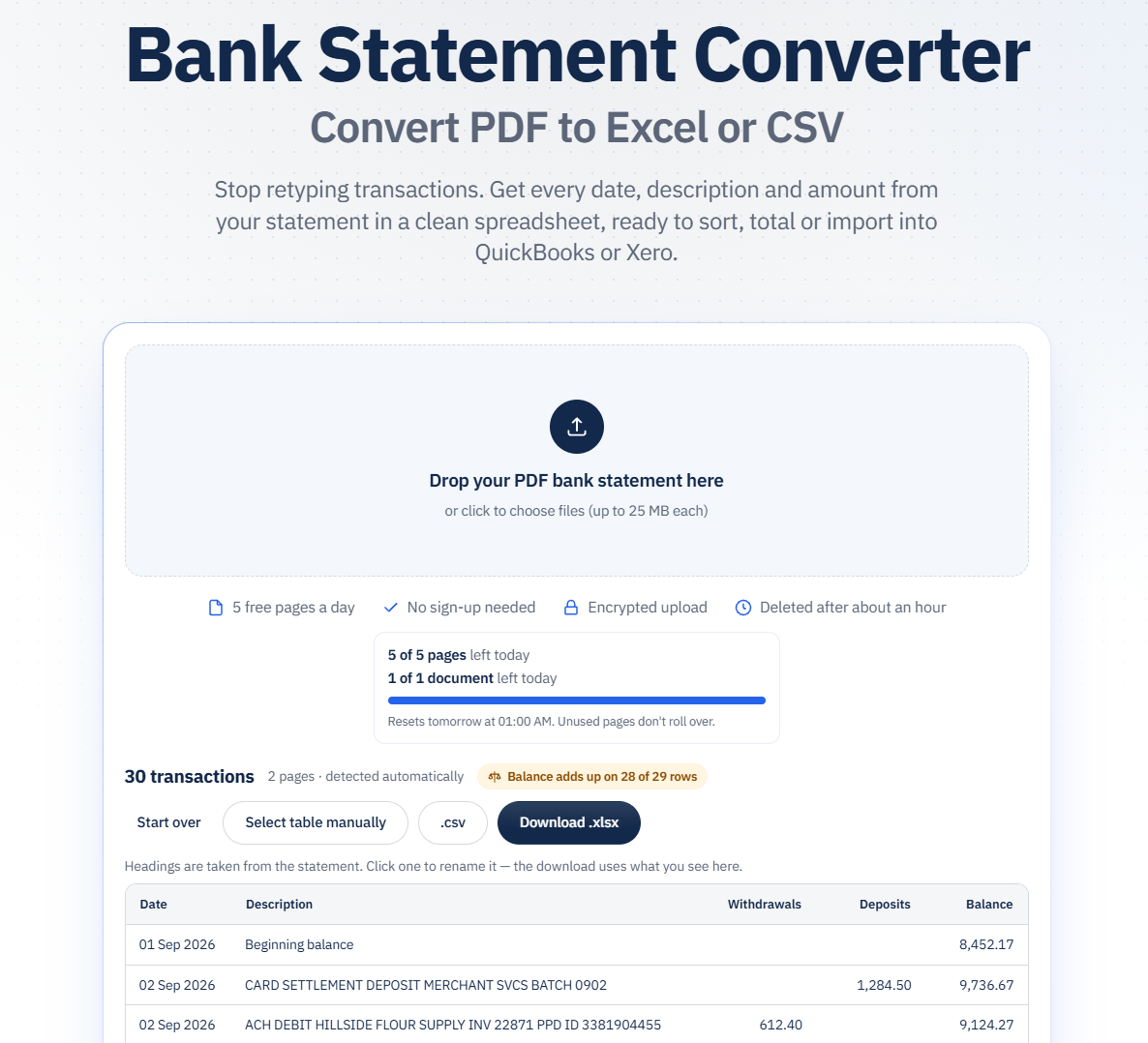
- Upload your statement. Drop the PDF into the online converter. You don't need an account for your first 5 pages of the day.
- Check the preview. Look over the table before you convert. Every plan has the preview, the free ones included.
- Convert. BSC reads the transactions into columns, checks every row against the running balance and shows how many rows add up. Descriptions that wrap onto a second line are joined into one row, dates come out as dates, amounts come out as numbers, and a multi-page statement comes out as one sheet.
- (Optional) Fix the table in manual mode. Draw a box around the table, add or remove rows and columns, move the column dividers and set each column's type: date, text or amount.
- Download. Pick .xlsx for Excel or Google Sheets, or .csv for QuickBooks Online or Xero.
Need more than 5 pages a day? A free account gives you 10, and paid plans add monthly pages (600 and above). Pro plan adds OCR for scanned statements and batch conversion. See available plans.
What the balance check does
Most statements print a running balance. BSC takes each row's deposit or withdrawal, applies it to the balance on the row above and compares the result with the balance the bank printed.
Before you download, it shows how many rows add up. If the count falls short, fix the table in manual mode, and the check runs again on your manual table.
Why does this matter? A missing row doesn't look missing. The spreadsheet still looks complete, and the gap only shows up later, when your books don't reconcile.
Method 2: Use Excel to convert a PDF bank statement
If you have Excel for Microsoft 365 on Windows and a PDF with selectable text, follow these steps:
- In a blank workbook, go to Data > Get Data > From File > From PDF.
- Select the statement and click Import.
- A preview window lists every table and page Excel found. Click each one to see it, and pick the one that holds the transactions. If the statement runs over several pages, tick Select multiple items and pick the table from each page.
- If you picked several tables, combine them with Home > Append Queries > Append Queries as New.
- Click Transform Data to open Power Query.
- Clean the table. Remove the lines above the column headings with Home > Remove Rows > Remove Top Rows, then click Use First Row as Headers. Filter out repeated headings, the beginning balance line and footer text.
- Set the data types: Date for the date column, Decimal Number for the amounts and the balance. If your statement prints dates without the year, like 09/02, add the year first. Power Query has no way to know it.
- Click Close & Load. For a CSV, go to File > Save As and choose CSV UTF-8 (Comma delimited).
Where it falls short
- It reads text-based PDFs only. A scanned statement has no text layer, so there's nothing to import.
- Statement headers, account summaries and footers often come in with the transactions.
- Descriptions that wrap onto a second line can split into two rows. Microsoft's own documentation says multi-line rows may need cleanup.
- Nothing checks that the rows add up to the closing balance.
In its favor: it's included with Microsoft 365, and the file never leaves your computer.
Method 3: Copy-paste a bank statement from a PDF into Excel
If you have a short statement, you can simply select the transactions in your PDF viewer, and paste them into Excel. Here’s how:
- Open the PDF, select the transaction lines and copy them (Ctrl+C, or Cmd+C on a Mac).
- Click cell A1 in a blank sheet and paste.
- Select column A, go to Data > Text to Columns and choose Fixed width. Set the breaks between the date, the description and each amount column.
- Fix the problems below, then save as .xlsx, or use File > Save As and choose CSV.

What breaks, and how to fix it
- Everything lands in one column. That's what Text to Columns is for. Splitting by spaces looks easier, but it also splits a description like ONLINE TRANSFER TO SAVINGS into four cells, and an empty Withdrawals cell shifts the deposit one column to the left. Fixed width works only if your PDF viewer kept the columns lined up. If it didn’t, expect to fix rows by hand.
- Descriptions wrap into extra rows. The second line of a payee arrives as its own row, with no date or amount. Join it to the row above, or delete it.
- Some amounts stay as text. Numbers that sit on the left of the cell are text. Remove $ signs and commas with Find and Replace, then convert them with VALUE. Dates without a year, like 09/26, take the current year when Excel converts them, which is wrong for last year's statements.
- Page headers repeat. Each new page brings back the bank's name, the column headings and the page number. Filter them out.
Copy-paste has one real strength: nothing leaves your computer. Past a page or two of transactions, the cleanup is where the time goes.
How do you check that your converted statement adds up?
Take the opening balance, add the total deposits, subtract the total withdrawals and compare the result with the closing balance on the PDF.
If they match, and the row count matches the statement, it’s very likely nothing went missing. If they don't, look at the rows around each page break and any wrapped descriptions first.
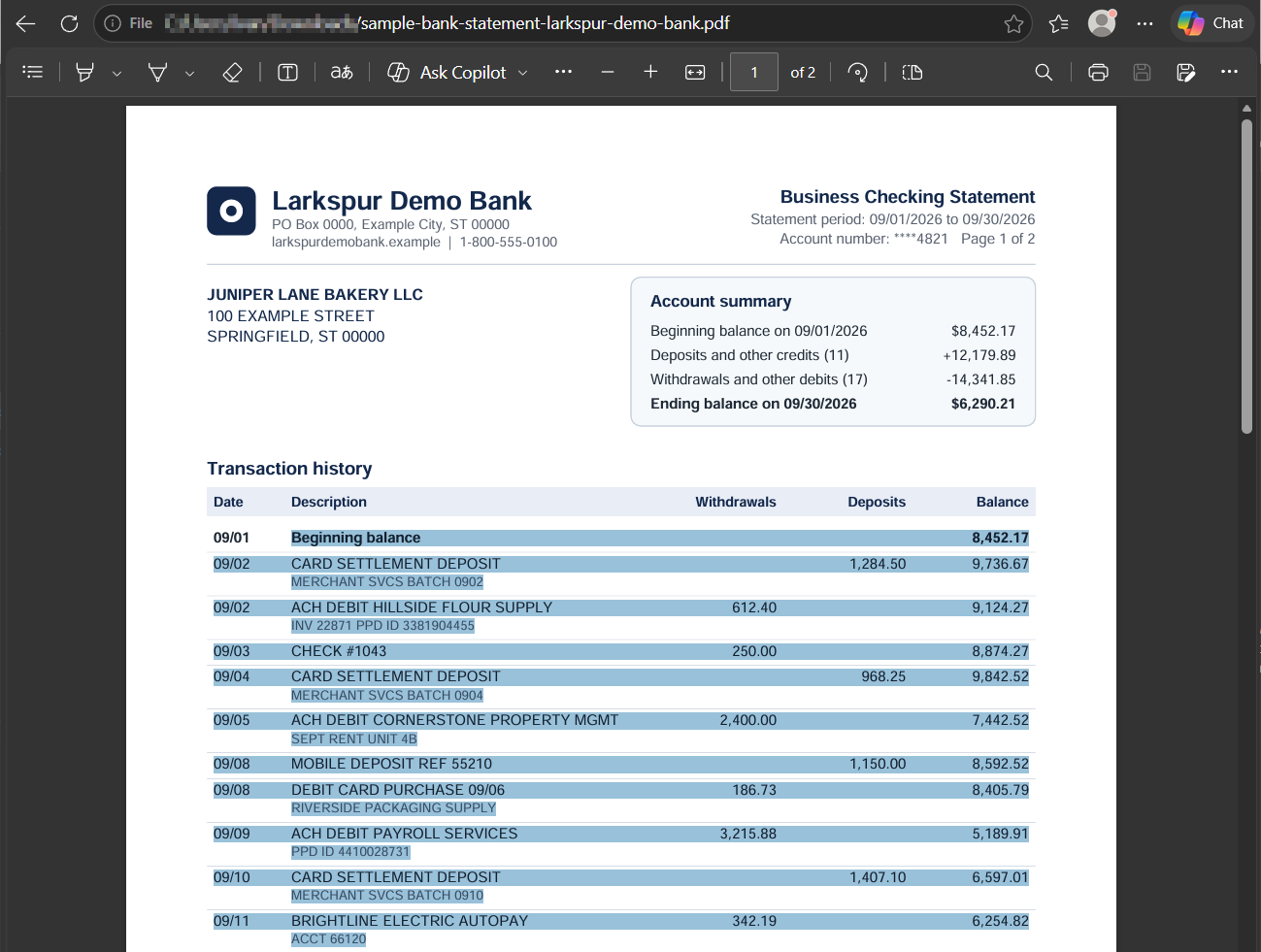
For example, take a statement that opens at $8,452.17, with 11 deposits and 17 withdrawals:
|
Opening balance |
$8,452.17 |
|
Plus deposits and other credits (11) |
$12,179.89 |
|
Minus withdrawals and other debits (17) |
$14,341.85 |
|
Closing balance |
$6,290.21 |
In Excel, put the formula under your data. If your columns are Date, Description, Withdrawals, Deposits and Balance, with transactions in rows 2 to 29, type =8452.17+SUM(D2:D29)-SUM(C2:C29), using your own opening balance and rows. The result should match the closing balance on the PDF.
Three more checks catch what the totals can miss:
- Count the rows. Many statements print the number of deposits and withdrawals in the summary. If it shows 11 deposits and 17 withdrawals, the sheet needs 28 rows. =COUNT(D2:D29) and =COUNT(C2:C29) count them for you.
- Check the dates. The first and last dates should fall inside the statement period.
- Check the running balance. If your statement has a Balance column, in a spare column next to row 3, type =E2+D3-C3 and copy it down. Each result should match the Balance column. The first row that doesn't is where the problem starts.
That last check is the one BSC runs on every row before you download.
Excel or CSV: which should you download?
Download .xlsx if you'll work in the spreadsheet: sort, filter, add categories or build a pivot table. It opens in Excel and Google Sheets and keeps column types, so dates stay dates and amounts stay numbers.
Download .csv if the file is going into accounting software. QuickBooks Online and Xero both import bank transactions from CSV. QuickBooks Online expects either three columns (Date, Description, Amount) or four (Date, Description, Credit, Debit).
Note: One thing to watch with CSV is dates. UK and Australian statements, and some Canadian ones, print DD/MM dates. Open that CSV in Excel with US settings, and 03/04 turns into March 4. Use Data > From Text/CSV and pick the right locale, or check the date format your accounting software expects before you import.
Frequently asked questions
1. Can I convert a scanned bank statement to Excel?
Yes, with OCR (Optical Character Recognition). A scanned statement is a picture of a page, so Excel's PDF import and copy-paste have no text to work with. BSC reads scanned statements with OCR on the Pro plan. Not sure what you have? Try to select a line of text in the PDF. If you can't, it's a scan.
2. Is it safe to upload a bank statement to an online converter?
It depends on the service, so read how it handles files before you upload. BSC deletes files after conversion and never accesses or sells them. It also never asks for your online banking login. You upload the PDF and nothing else.
3. Do I need Excel to open the converted file?
No. An .xlsx file opens in Google Sheets, Apple Numbers and LibreOffice Calc. In Google Sheets, use File > Import, or upload the file to Google Drive and open it there. A CSV opens in any spreadsheet app, and in a plain text editor too.
4. Can I convert several statements at once?
Yes, with Bank Statement Converter on the Pro plan. Batch conversion lets you drop several PDFs at once and download the results as one ZIP file. On the other plans, you convert one PDF at a time.
5. How does BSC count pages?
Each PDF page counts as one page, however many transactions it holds. A 12-page statement uses 12 pages of your limit. Free limits reset every day. Paid limits reset every month, on yearly plans too.
6. Should I keep the PDF after converting?
Yes. The PDF is the bank's own record of the account, and lenders, auditors and tax preparers often ask for statements in that form. Treat the spreadsheet as your working copy for sorting, totals and imports.
Convert your first statement for free
Got a statement open in another tab?
Upload it to the bank statement converter, check the preview and download Excel or CSV.
Five free pages a day. No account needed. If you convert statements every month, see plans.